Unlock the full potential of digital mind mapping by learning how to effectively add notes and attachments. This comprehensive guide provides a step-by-step approach to enriching your mind maps with valuable information and supporting materials. From simple annotations to complex multimedia integration, you’ll discover practical methods for enhancing your digital brainstorming sessions and project management efforts.
This guide explores various digital mind mapping software, detailing how to add notes to different elements, attach files, and organize everything for optimal clarity. It also covers best practices for maintaining a well-structured mind map and troubleshooting common issues.
Methods for Adding Notes
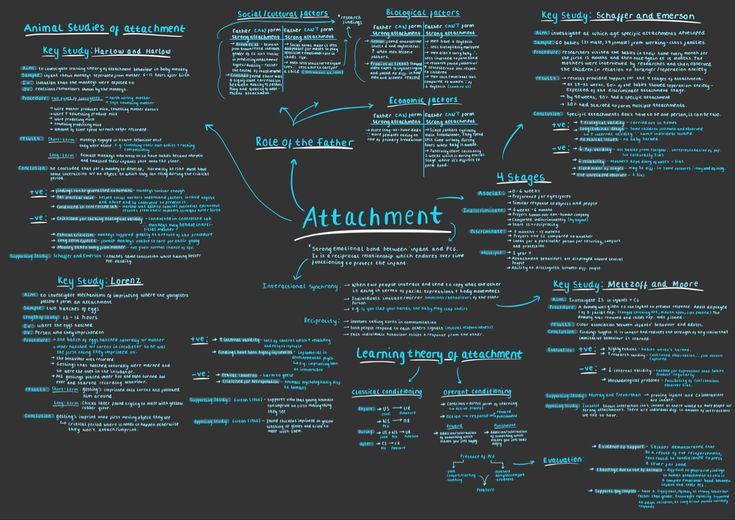
Adding notes to a digital mind map is crucial for capturing and organizing ideas effectively. This process allows users to elaborate on concepts, connect them to other ideas, and build a comprehensive understanding of the topic. Different methods exist for adding notes to various parts of a mind map, catering to the specific needs of the user and the complexity of the subject matter.Various methods for adding notes to different elements within a digital mind map allow for a structured and comprehensive approach to information management.
These methods range from simple text input to more sophisticated formatting options, enabling users to effectively organize and retrieve information. Specific software programs, such as MindManager, XMind, and FreeMind, offer distinct approaches to note-taking.
Methods for Adding Notes to Mind Map Elements
Different parts of a digital mind map, such as the central idea, branches, and sub-branches, require unique note-adding approaches. The method used should reflect the relationship between the note and the specific element. Adding notes to the central idea, for example, establishes the core concept, while notes on branches and sub-branches provide supporting details and further explorations of related ideas.
Note Addition Using Specific Software
Different mind mapping software employs unique interfaces for adding notes. MindManager, for example, often uses a dedicated note-entry field directly associated with the element. This allows for immediate annotation of the corresponding concept. XMind may incorporate a pop-up window for note input, while FreeMind often uses the same text box for both the main text and the notes.
The specific method varies depending on the chosen software.
Formatting Notes for Clarity and Readability
Proper formatting enhances the clarity and readability of notes within a mind map. Using bold text for key terms, italics for definitions, and numbered or bulleted lists for sequences or points significantly improves comprehension. Consistent formatting helps users quickly scan and understand the content, making the mind map more accessible and effective.
Example of Formatting
- Key Term: Definition
- Step 1: Action 1
- Step 2: Action 2
- List of points:
- Point A
- Point B
- Point C
Comparison of Note-Adding Features
The following table compares the note-adding features of three popular mind mapping software: MindManager, XMind, and FreeMind.
| Feature | MindManager | XMind | FreeMind |
|---|---|---|---|
| Note Entry Method | Dedicated note field associated with element | Pop-up window for note input | Same text box for main text and notes |
| Formatting Options | Extensive formatting tools | Good formatting options | Basic formatting |
| Note Accessibility | Direct access to associated notes | Easily accessible notes | Notes integrated with text |
Importance of Formatting
Proper formatting is crucial for ensuring that notes are clear, concise, and easy to read. By using bold, italics, and lists, users can highlight important information and create a more structured and understandable representation of their ideas. The choice of formatting reflects the importance assigned to different aspects of the concept. Consistent formatting enhances the overall visual appeal and clarity of the mind map.
Methods for Attaching Files
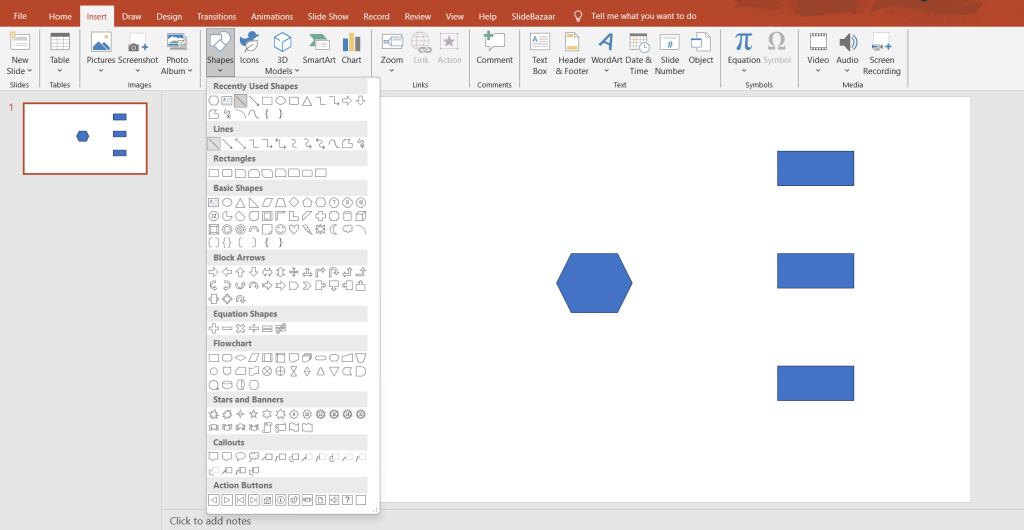
Attaching files to mind map elements is a crucial aspect of utilizing mind maps for effective knowledge management and collaboration. This process enhances the richness and depth of the map, allowing users to access supplementary information directly related to the concepts being explored. The ability to integrate files seamlessly with mind map branches, sub-branches, and individual notes streamlines research and improves the overall usability of the mind mapping tool.The variety of file types that can be attached, coupled with the diverse methods of attachment across different mind mapping software, necessitates a comprehensive understanding of the process.
This section delves into the practical aspects of attaching files, outlining the procedures for various software platforms and highlighting the relative ease of use for each.
Different File Types for Attachment
Mind mapping software generally supports a wide range of file types, enabling users to integrate various forms of supplementary information directly into their maps. This broad compatibility fosters a flexible and comprehensive approach to knowledge representation. Common file types include documents (e.g., .docx, .pdf), images (.jpg, .png, .gif), spreadsheets (.xlsx), presentations (.pptx), and audio/video files. The specific types supported can vary slightly between different mind mapping programs.
Methods for Attaching Files to Mind Map Elements
The methods for attaching files to mind map elements often mirror the process of adding notes. Files can be attached to branches, sub-branches, or individual notes within the mind map. Typically, a dedicated “attach file” function or a similar command is used to select the file from the user’s computer and link it to the desired element within the mind map.
This method ensures that the file is readily accessible alongside the associated mind map entry. The exact process may differ slightly between different mind mapping software packages.
Attaching Files in Various Mind Mapping Software
The specific process for attaching files varies slightly depending on the mind mapping software used. Some programs allow users to drag and drop files directly onto the map element. Others require a specific menu command or function to browse and select the file. Regardless of the method, the core concept remains the same: to link a file to a specific location within the mind map.
Comparison of File Attachment Ease Across Mind Mapping Programs
The ease of attaching files varies between mind mapping programs. Some programs provide a straightforward drag-and-drop interface, making the process intuitive and quick. Others might require more steps or less intuitive navigation. User experience and familiarity with the software are important factors in determining the perceived ease of file attachment.
Table of Supported File Types
This table provides a general overview of file types commonly supported by popular mind mapping software. It is crucial to note that specific support may vary depending on the version of the software.
| Mind Mapping Software | Common Supported File Types |
|---|---|
| MindManager | .docx, .pdf, .jpg, .png, .xlsx, .pptx, .mp3, .mp4 |
| XMind | .docx, .pdf, .jpg, .png, .xlsx, .pptx, .mp3, .mp4, .csv |
| FreeMind | .docx, .pdf, .jpg, .png, .txt |
| Mindomo | .docx, .pdf, .jpg, .png, .xlsx, .pptx, .mp3, .mp4, .zip |
Best Practices for Organizing Notes and Attachments
Effective organization is crucial for maximizing the value of digital mind maps. Proper structuring of notes and attachments allows for quick retrieval of information, facilitates collaboration, and streamlines the overall workflow. A well-organized mind map becomes a powerful tool for brainstorming, knowledge management, and project planning.
Designing a Note and Attachment Template
A well-structured template is essential for maintaining consistency and clarity within a digital mind map. This template should define the format for both notes and attachments, ensuring that similar information is consistently presented. For example, key terms could be italicized, dates formatted, and attachment types labeled (e.g., images, documents, audio files). This uniformity greatly enhances the user experience and comprehension of the map.
It promotes efficient information retrieval and allows for easy scanning of the map’s contents.
Importance of Consistent Formatting and Labeling
Consistent formatting and labeling significantly enhance the readability and searchability of your mind map. This practice ensures that similar information is presented in a standardized manner. For example, using a specific font style for headings, bullet points for sub-points, and a consistent color scheme for different categories. Proper labeling is equally important. Attachments should be named descriptively, clearly indicating their content.
Using s or short descriptions in the file names can improve searchability and reduce ambiguity.
Color-Coding and Visual Cues for Categorization
Color-coding and visual cues provide a visual hierarchy within the mind map, allowing users to quickly identify and categorize notes and attachments. Using a color scheme that associates particular colors with specific categories (e.g., red for deadlines, green for project milestones) improves comprehension. Icons, symbols, or shapes can also be used to represent different types of attachments, providing an instant visual guide to the nature of each item.
This visual approach enhances the user experience, making it faster and easier to locate specific information.
Effective Note-Taking and Attachment Management for Complex Mind Maps
For complex mind maps, a multi-layered approach to note-taking and attachment management is beneficial. Breaking down large concepts into smaller, manageable sections improves comprehension and organization. Use hierarchical structures to categorize notes and subdivide them logically. Employing a system for tagging or ing notes and attachments allows for more targeted searches. If the mind map involves many interconnected ideas, consider using different branches of the map to represent various aspects of the topic, ensuring each section remains focused.
Guidelines for Maintaining an Organized Mind Map
Keep your mind map organized by adhering to these key guidelines:
- Regularly review and update your mind map to ensure accuracy and relevance.
- Establish a clear naming convention for notes and attachments.
- Use a consistent color scheme and visual cues to categorize information.
- Utilize tags and s to facilitate efficient searching and retrieval.
- Regularly back up your mind map to prevent data loss.
Advanced Techniques for Utilizing Notes and Attachments
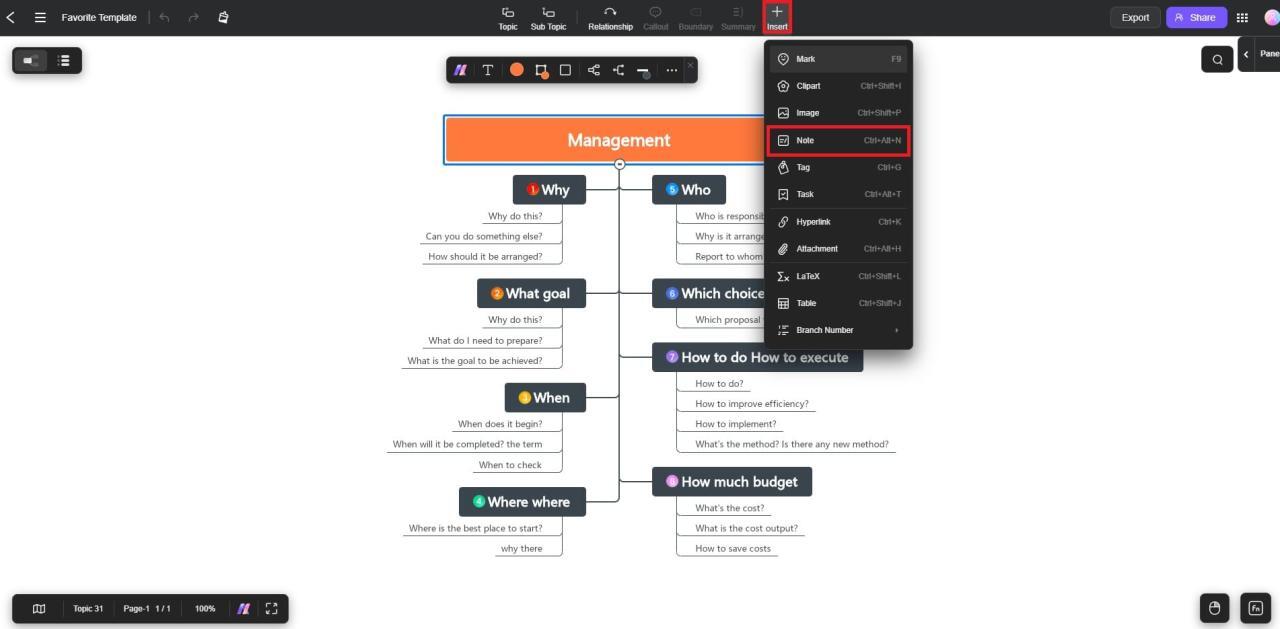
Leveraging notes and attachments effectively elevates the value of your digital mind map beyond simple organization. This section explores advanced techniques, including the creation of hyperlinks, utilizing notes as reminders, and employing attachments for enhanced visual aids and project support.By incorporating these techniques, you can transform your mind map into a dynamic and comprehensive resource for planning, brainstorming, and research.
This enhanced functionality will make your mind maps more interactive and insightful.
Hyperlinking Within Notes and Attachments
Creating hyperlinks within notes and attachments allows for seamless navigation between related information. This feature significantly improves the interconnectedness of your mind map. Linking to external websites, documents, or other mind map sections enhances the resourcefulness of your work. Hyperlinks make the map a dynamic knowledge base.
- To create a hyperlink within a note, select the text you want to link and use the appropriate software’s hyperlink function. Provide the URL or file path. This action transforms the selected text into a clickable link.
- Linking attachments to specific sections of the mind map creates a direct path to supporting materials. This ensures that relevant documents or images are immediately accessible. This streamlines research and reference.
Utilizing Notes as Reminders and To-Do Items
Effective use of notes goes beyond just recording information; they can serve as crucial reminders and to-do items. Integrating reminders into your mind map allows you to stay organized and on track with tasks. This feature is particularly useful for project management and personal scheduling.
- Many mind mapping software applications allow you to set reminders or deadlines directly within notes. These reminders can be customized for different time frames, providing a practical way to stay organized.
- Formatting notes to clearly indicate tasks (e.g., using bold text or specific icons) enhances their function as to-do items. This approach makes it easy to identify and prioritize actionable items.
Employing Attachments as Visual Aids and Supporting Data
Attachments can serve a variety of purposes beyond simply storing files. They can be utilized as visual aids, supporting data, or even multimedia elements to enrich the mind map.
- Including images, charts, or diagrams as attachments provides visual context and support to your notes. These visual elements can improve comprehension and engagement with the material.
- Attachments can also be used to incorporate supporting data, such as research papers, spreadsheets, or statistical reports. These additions ensure that your mind map is grounded in solid data.
- Multimedia attachments, like audio or video clips, can add dynamic elements to your mind map, making it a richer and more engaging learning resource.
Examples of Using Notes and Attachments for Project Planning, Brainstorming, or Research
Mind maps, when combined with notes and attachments, become powerful tools for project planning, brainstorming, and research. The examples below demonstrate how this functionality can be applied:
- Project Planning: A mind map for a software development project can include notes outlining specific tasks and deadlines, with attached documents outlining technical specifications and project plans.
- Brainstorming: During a brainstorming session, notes can record ideas, with attachments of relevant images or sketches that further illustrate those ideas. This method fosters creative thinking.
- Research: A mind map for a research paper can incorporate notes summarizing key findings from various sources, with attached PDFs of articles and supporting documents.
Detailed Mind Map Example: Planning a Vacation
This example demonstrates a mind map for planning a vacation to Italy. The mind map includes notes about destinations, activities, and budgets. Attachments are used to include images of hotels, flight schedules, and relevant tourist information.
| Topic | Notes | Attachments |
|---|---|---|
| Destinations | Rome, Florence, Venice | Images of iconic landmarks, maps |
| Activities | Visit museums, explore historical sites, attend concerts | Links to museum websites, concert schedules |
| Budget | Flights, accommodation, food, activities | Spreadsheet outlining estimated costs |
| Accommodation | Book hotels in advance | Images of hotels, booking links |
This detailed example highlights how notes and attachments can be effectively combined to create a comprehensive and insightful mind map.
Troubleshooting Common Issues
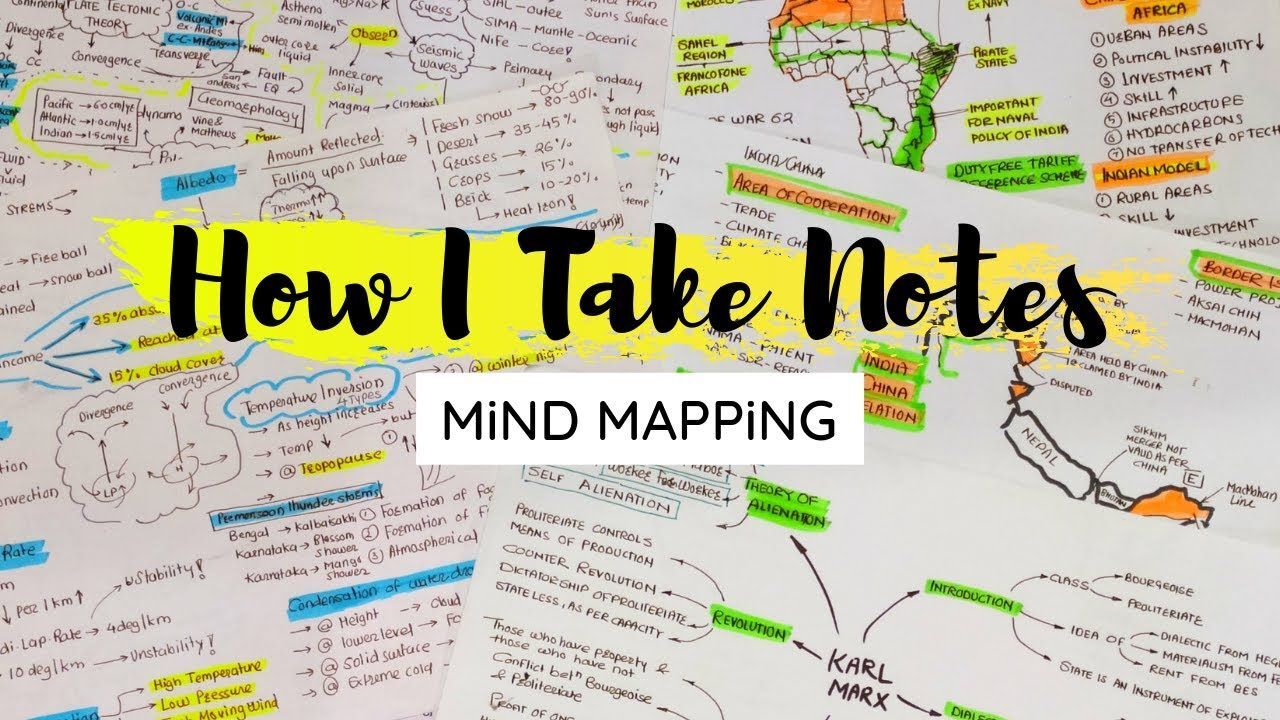
Adding notes and attachments to a digital mind map is a powerful way to enhance understanding and organization. However, occasional issues can arise during the process. This section will address potential problems, common mistakes, and their resolutions across various mind mapping software, enabling users to effectively troubleshoot and overcome these challenges.Potential problems when adding notes or attachments can stem from various factors, including file compatibility issues with the mind mapping software, insufficient storage space on the device, or network connectivity problems during the upload process.
Common mistakes often involve incorrect file formats, insufficient note details, or misplaced attachments within the mind map structure. Resolving these issues requires understanding the specific error messages and implementing appropriate troubleshooting steps tailored to the mind mapping tool in use.
Identifying File Compatibility Issues
Mind mapping software often has limitations regarding the types of files it can directly import or attach. Some formats, like certain image types or specific document formats, might not be supported. Users should refer to the software’s documentation to confirm compatibility. If a file type is unsupported, converting it to a compatible format (e.g., converting a .PSD image to a .PNG) is a crucial step.
Addressing Storage Space Constraints
Insufficient storage space on the device can lead to errors when adding attachments. This problem is frequently encountered when large files are being attached. Users should regularly check the free storage space available on their devices and consider methods for freeing up space, such as deleting unnecessary files or using cloud storage services to manage attachments.
Troubleshooting Network Connectivity Problems
Network interruptions during the file upload process can result in incomplete or failed attachments. These interruptions are common during remote work or when using less stable internet connections. Users should ensure a stable network connection and try re-attaching the file if the initial attempt fails. In some instances, temporarily switching to a more reliable network or using a faster internet connection might be necessary.
Common Mistakes in Note and Attachment Organization
Incorrectly categorizing notes or placing attachments in the wrong location within the mind map structure can hinder efficient retrieval. Users should ensure notes and attachments are properly associated with relevant branches or topics within the mind map. This practice is vital for maintaining a well-organized and navigable mind map.
Resolving Issues in Different Mind Mapping Software
Different mind mapping software might have unique error messages and troubleshooting steps. Users should consult the specific software’s help documentation for detailed instructions on resolving issues. For instance, some software might require specific file formats for attachments or have limitations on the size of attached files.
Table of Troubleshooting Steps for File Attachment Problems
| Problem | Possible Cause | Troubleshooting Steps |
|---|---|---|
| Attachment fails to upload | Network connectivity issues, file size limitations, incompatibility | Check internet connection, reduce file size, ensure file format compatibility, retry upload. If problem persists, contact support. |
| Attachment is corrupted | Damaged file, incompatibility | Download the file again, check for errors, try a different file version. If the issue persists, contact support. |
| Attachment is missing | File deletion, upload errors, software glitches | Check the file location, retry the upload, check for software updates. If the issue persists, contact support. |
Recovering Lost Notes or Attachments
Accidental deletion of notes or attachments can be frustrating. Users should regularly back up their mind maps to prevent data loss. Some mind mapping software provides features for recovering deleted items, often within a specific timeframe. Utilizing cloud storage services is also beneficial in this regard.
Examples of Mind Map Applications
Mind maps, when combined with notes and attachments, become powerful tools for various tasks and fields. Their flexibility allows users to capture ideas, organize information, and track progress in a visual and interconnected manner. This versatility is crucial in diverse settings, from academic research to personal goal setting. This section presents real-world examples demonstrating the enhanced effectiveness of mind maps with integrated notes and attachments.
Real-World Applications in Education
Mind maps, enriched with notes and supporting documents, are invaluable tools in educational settings. Students can use them to Artikel research papers, organize complex historical events, or grasp intricate scientific concepts. For instance, a student studying the history of the Roman Empire could create a mind map with key events as branches. Each branch could contain notes about specific battles, political figures, and social changes, along with attached primary source documents like letters or decrees.
This approach aids comprehension and deeper understanding by connecting disparate facts. Furthermore, mind maps help in recalling and synthesizing information effectively, enhancing overall learning outcomes.
Business Applications of Mind Maps
In a business context, mind maps with notes and attachments can significantly improve project management and strategic planning. A marketing team planning a new campaign could use a mind map to brainstorm ideas, outlining target audiences, marketing channels, and potential strategies. Detailed notes on each aspect, along with attached market research reports and competitor analysis documents, would provide a comprehensive view of the campaign’s potential and challenges.
Likewise, project managers can leverage mind maps to Artikel project timelines, allocate resources, and track progress. Attachments of project specifications, task assignments, and progress reports contribute to effective communication and collaboration among team members.
Personal Development and Goal Setting
Mind maps are equally beneficial for personal development. An individual aiming to improve their fitness could create a mind map with “Fitness Goals” as the central idea. Sub-branches could represent specific goals like “Weight Loss,” “Muscle Gain,” and “Cardio Improvement.” Detailed notes about workout routines, nutrition plans, and progress tracking, along with attachments of fitness articles and motivational quotes, could provide a personalized roadmap.
This personalized plan, reinforced with notes and attachments, helps in maintaining motivation and achieving desired outcomes.
Creative Problem-Solving and Decision-Making
Mind maps are powerful tools for fostering creative problem-solving and informed decision-making. Imagine a team facing a challenging project with limited resources. A mind map, with the central idea of “Project X,” could branch out to different potential solutions, each branch containing detailed notes about its pros and cons, feasibility, and estimated costs. Attachments of relevant research, expert opinions, and risk assessments could help the team evaluate the solutions critically.
This approach facilitates a comprehensive analysis and a data-driven decision-making process, maximizing the chances of success.
Example: Personal Budget Management
- A mind map for managing a personal budget can have “Budget” as the central idea. Sub-branches could represent categories like “Housing,” “Food,” “Transportation,” and “Entertainment.” Each category could further branch into specific expenses.
- Attached documents such as bank statements, receipts, and bills help visualize spending patterns.
- Detailed notes about projected income, expenses, and savings goals provide a comprehensive budget overview.
Example: Project Planning
- A mind map for planning a project can have the project name as the central idea.
- Sub-branches could represent project phases, tasks, and milestones. Detailed notes about each task, including deadlines, assigned personnel, and required resources, would contribute to the plan.
- Attachments such as project specifications, timelines, and resource allocation sheets enhance the project’s organization and clarity.
Last Point
In conclusion, this guide has demonstrated how to effectively integrate notes and attachments into your digital mind maps. By following the provided methods and best practices, you can significantly enhance the usability and value of your mind maps for various purposes, from personal brainstorming to complex project planning. Remember to tailor your approach to your specific needs and software preferences for maximum benefit.